
If you are still logging into QuickBooks through a desktop browser, clicking through five nested menus, and manually typing out line items to generate an invoice, you are wasting hours of billable operational time every week.
Your accounting and CRM systems should not be separate destinations you visit. They should be invisible utilities controlled directly from the AI chat interface you already have open on your screen.
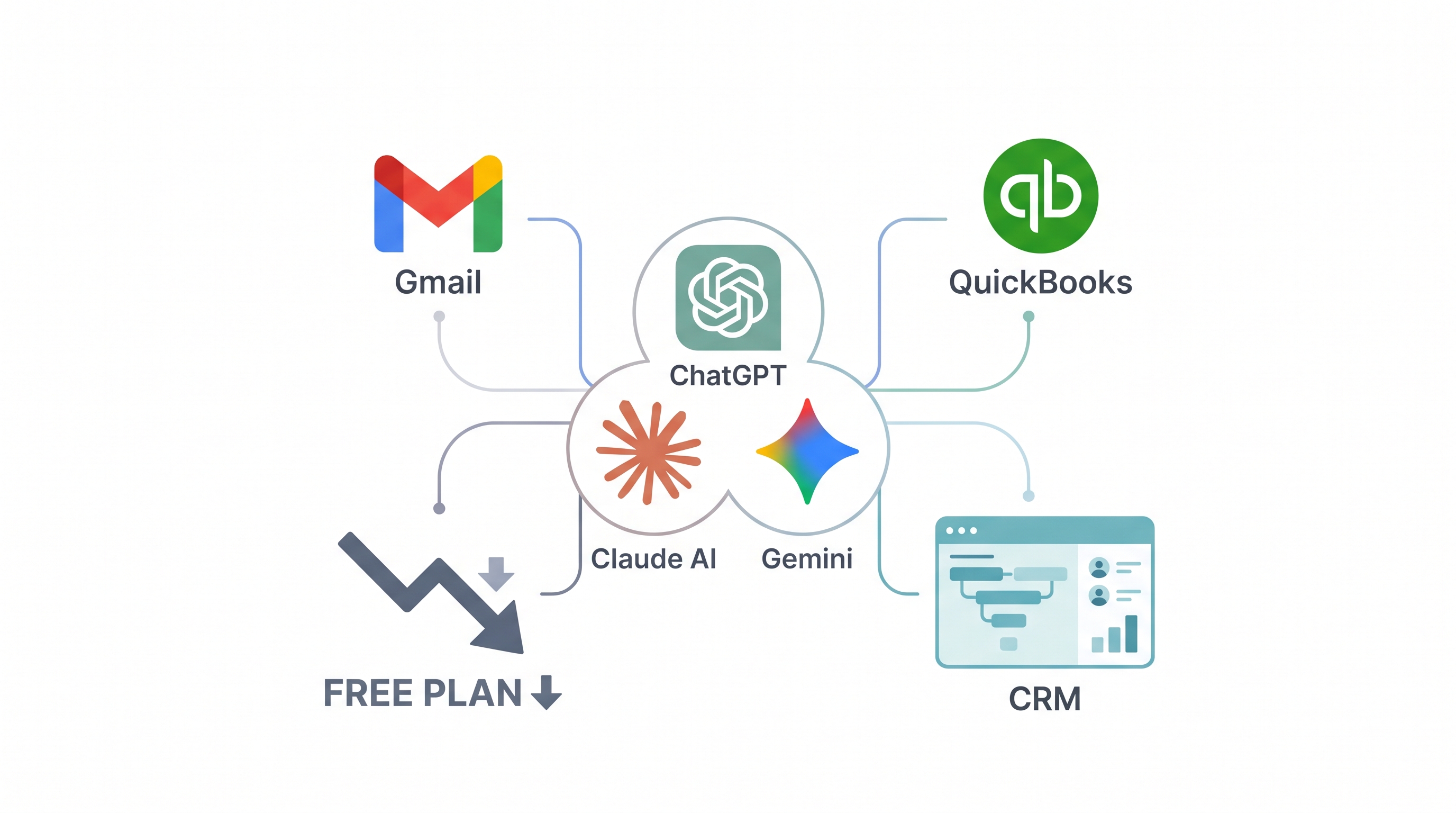
You can now connect the official QuickBooks plugin directly to ChatGPT and Claude—and the best part is that it works even if you are on a completely free ChatGPT or Claude account. You do not need to pay for a $20/month Plus or Pro subscription just to automate your bookkeeping.
Even better: once configured, this entire setup works seamlessly inside the iPhone and Android mobile apps. You can finish a client meeting, pull out your phone, and tell Claude or ChatGPT to generate an estimate, convert it to an invoice, and update your CRM before you even walk out to your car.
Here is the exact operational playbook to connect it, configure permissions, and run your business from a single chat thread.

1. Connecting the Official QuickBooks Plugin (Zero Code Required)
You do not need Zapier, Make, or custom webhooks to bridge your AI assistant with Intuit's ecosystem. Both OpenAI and Anthropic support native, direct OAuth connections to QuickBooks.
How to set it up in under 60 seconds:
- Open the Plugin / Integration Directory: Inside ChatGPT (under Settings > Apps & Plugins or Explore GPTs/Plugins) or Claude (under Settings > Integrations / Connected Apps), search for the official QuickBooks integration.
- Initiate the OAuth Handshake: Click Connect. You will be redirected to Intuit’s official login portal.
- Select Your Company File: Log in with your QuickBooks credentials and select the specific business entity you want the AI to access.
- Authorize Permissions: Review the scope permissions and click Connect.
Once redirected back to your chat window, the connection is live. Because this uses native account-level OAuth, it syncs automatically across your devices—meaning your iOS and Android apps instantly inherit the exact same QuickBooks capabilities without requiring any mobile configuration.
2. Managing Permissions Safely (Controlling What the AI Can Touch)
Giving an AI assistant access to your financial ledger sounds terrifying if you don't understand how permission scoping works. You want operational velocity, not an AI accidentally deleting your Q3 tax records.
When you authorize the QuickBooks plugin, you are granting scoped API access. To keep your financial operations locked down:
- Enforce Human-in-the-Loop Approvals: Always instruct the AI in your custom instructions or prompt to draft or preview financial actions before executing them. Never let it fire off an invoice without showing you the line items first.
- Use Role-Based QuickBooks Users: If you are connecting an assistant's ChatGPT or Claude account to your company's QuickBooks, create a restricted user role inside QuickBooks first (e.g., Sales/Estimates only, no access to payroll or bank feeds) and authenticate using those credentials.
- Instant Revocation: You maintain 100% control. At any second, you can go into your QuickBooks My Apps dashboard or your AI platform's settings and click Disconnect to immediately sever the token.
3. Running QuickBooks & Your CRM Entirely From Chat (Desktop or Mobile)
Once connected, your chat bar becomes a command line for your entire business. Instead of clicking through forms, you execute operations using plain English—or voice-to-text on your phone.
What you can execute right now:
- Instant Quotations & Invoices: "Create a QuickBooks estimate for Acme Corp for $12,500 covering 'Q4 Web Architecture'. Show me the summary first, and once I confirm, convert it to an invoice and email it to john@acmecorp.com."
- Live Cash Flow & A/R Audits: "Pull a list of all overdue invoices over 30 days old, calculate the total outstanding accounts receivable, and draft polite follow-up emails for each client."
- Unified CRM + Bookkeeping Workflows: When paired with your email and CRM plugins inside the same chat, the AI acts as the glue between sales and finance. When a prospect replies "Approved" in your inbox, you can tell Claude or ChatGPT to log the deal stage in your CRM, create the customer profile in QuickBooks, and generate the mobilization deposit invoice in one single turn.
Not Available in Your Region—or Need a Custom Setup?
Depending on your country or your specific QuickBooks regional version, Intuit's official plugin directory or certain third-party CRM integrations may still be restricted or unavailable in your region.
Do not let regional rollouts or rigid out-of-the-box plugins bottleneck your agency.
If the official integration isn't available where you operate—or if you want a custom-built AI automation workflow tailored specifically to your business, connecting ChatGPT, Claude, or Gemini directly to your QuickBooks, local accounting software, SMTP email, and CRM—we can build it for you.
Fill out this quick Google Form with your business requirements, and I will personally help you customize and integrate your entire workflow.
Alternatively, reach out directly to demo@autoquote.digital or atitbimali10@gmail.com, or drop a message in the chat widget below to get started.